

Connect HubSpot one time. Then your WhatsApp chats and calls go into HubSpot by themselves. Each one goes to the right contact. A contact is a person you saved in HubSpot. Nobody has to copy messages or write down calls.
What you get
- Your WhatsApp messages. They show up on the contact in HubSpot. You see what the customer wrote. You see what your team wrote back in Wassenger.
- Your WhatsApp calls with your contacts, on numbers that take WhatsApp calls. You see calls you made and calls you got. Answered calls and missed calls both show up. You see how long each call lasted. You see which teammate took it, if they use the same email in HubSpot.
- A WhatsApp card, if you add it. A card is a small box on each contact. It shows which of the numbers you connected chat with that person. A button on it opens the chat in Wassenger.
HubSpot gets only new chats and calls, from the moment you connect. Older ones stay in Wassenger.
What you need
You need all five of these:
- You are an owner or admin in Wassenger.
- Each WhatsApp number you connect is on the official WhatsApp Business API. HubSpot is only for these numbers. It is not for numbers connected with a QR code.
- Each WhatsApp number you connect has the Platform plan. A number without it is gray and says Needs a Platform plan. Upgrade that number first. Then you can pick it.
- You are a Super Admin in HubSpot. A Super Admin can change every setting in HubSpot.
- Your customers are saved as contacts in HubSpot. Their number is in the Phone number or Mobile phone number field. HubSpot gets a chat only when its number matches a contact.
Connect HubSpot
It takes about two minutes. Pick every number you need now. To change them later, you must disconnect and connect again.
- Open Connect HubSpot in Wassenger.
- Click each WhatsApp number you want in HubSpot. It gets a blue check mark.
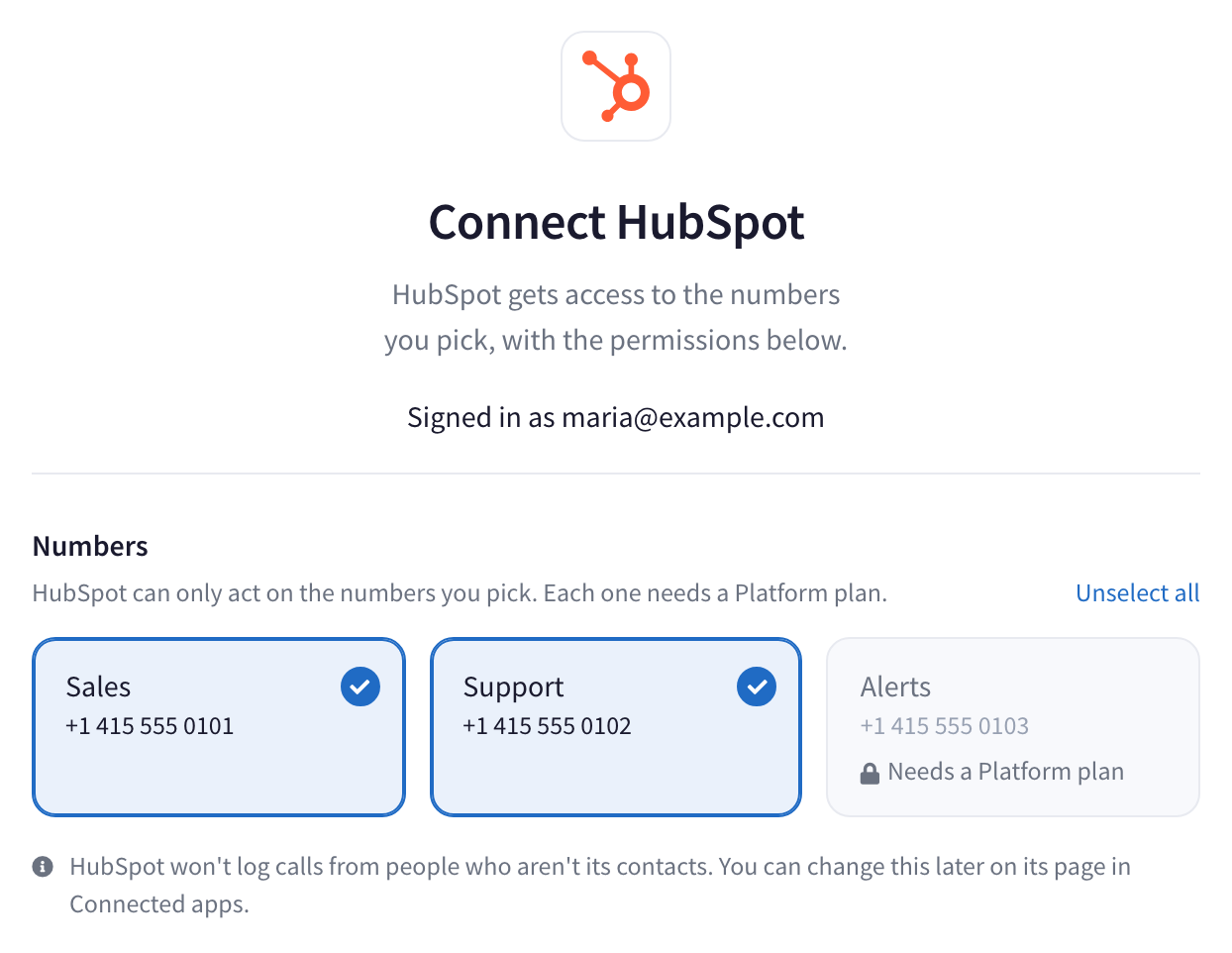
- Click Connect HubSpot at the bottom right.

- A new page opens. Make sure your numbers are right.
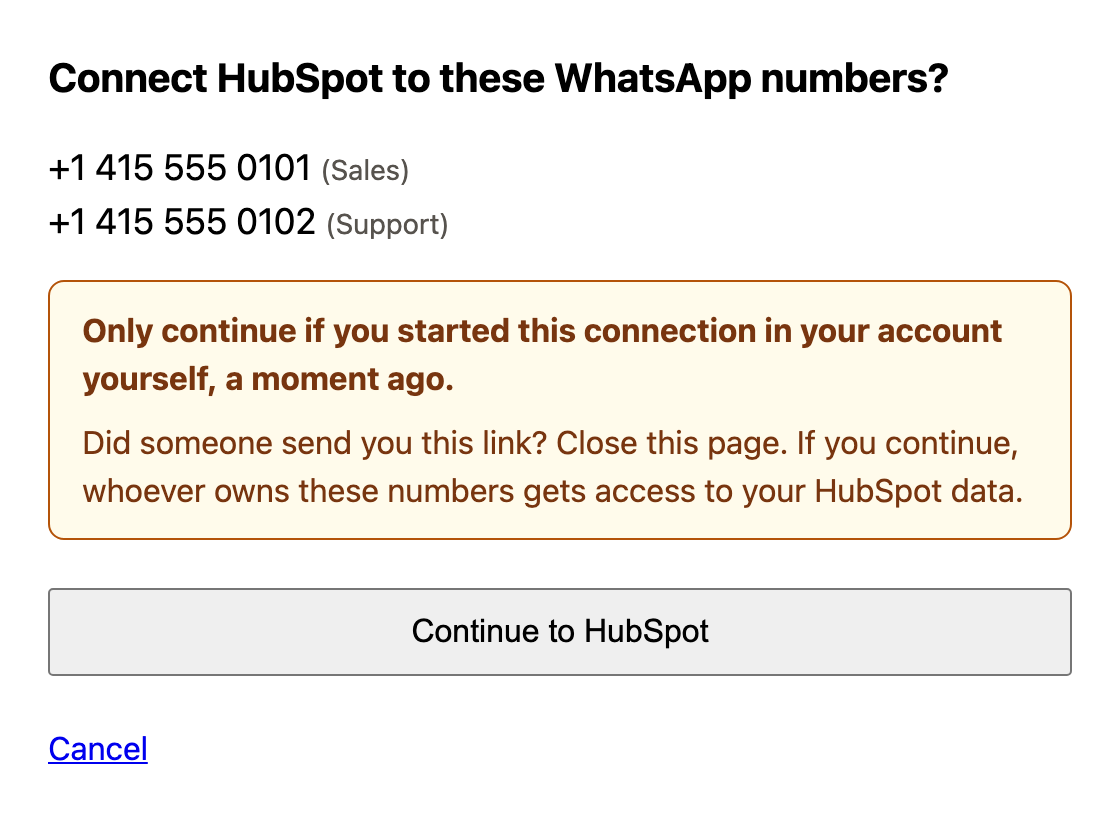
This page has a yellow safety box. Go on only if you started this yourself, just now. Did someone send you the link? Then close the page.
- Click Continue to HubSpot.
Now you are in HubSpot. Here the app is called Chat & Call Sync. HubSpot shows what the app may do. That is normal.
- Choose your HubSpot account.
- Click Connect app.
- HubSpot may warn that the app is not verified yet. It shows this for new apps. Type I accept the risk. Then click Connect.
HubSpot sends you back to Wassenger. You see the HubSpot page in Connected apps. It says Connected, next to a green dot. That means it worked.

Check that it works
Test it with your own phone.
- In HubSpot, save your own mobile number as a new contact.
- On your mobile, open WhatsApp.
- Send a message to one of the numbers you connected.
- Wait one minute.
- In HubSpot, open your new contact.
You see your message on the contact. That means it works.
No message? Read "What if a chat is missing?" below.
Add the WhatsApp card (optional)
You can skip this part. Messages and calls go to HubSpot without the card.
The card is a small box on each contact. It shows which of the numbers you connected chat with that person. A HubSpot Super Admin adds it one time. Then your whole team sees it.
- In HubSpot, go to CRM, then Contacts.
- Open any contact.
- Click Customize.
- Click Default view.
- Click Add card. It is at the top of the right side.
- Click the Card library tab.
- Click the card type menu.
- Choose Apps.
- Find WhatsApp in the list.
- Click its Add card button.
- Close the card list.
- Click Save and exit.
Now every contact shows the WhatsApp card on the right. To open a chat, click Open chat under its number on the card.
Sometimes the card shows a short note instead:
- WhatsApp is not connected yet means this HubSpot account is not connected. Follow the steps in "Connect HubSpot" above.
- No WhatsApp chats yet means none of the numbers you connected has chatted with this person yet.
- No phone number means this contact has no phone number in HubSpot. Add one. Then the card finds their chats.
- No WhatsApp chats found means the card could not check some of the numbers you connected, just now. The chat may be on one of them. Open the contact again in a few minutes.
- WhatsApp chats could not be loaded means the card could not check the numbers you connected, just now. Wait a moment. Then click Try again.
What if a chat is missing?
Check these things.
Is the person a contact in HubSpot?
HubSpot gets a chat only when its phone number is on a contact.
- In HubSpot, add the person as a contact.
- Save their number in the Phone number or Mobile phone number field.
- Wait up to 15 minutes.
After that, their new messages show up. Their older messages stay in Wassenger only.
Is the number saved with its country code?
Each chat goes to the contact with the same phone number. For customers in other countries, save the number with its country code. For example, in +44 7700 900123 the country code is +44. Numbers from your own country work just as you saved them.
Do two contacts have the same number?
Then HubSpot cannot know which one is right. The chat goes to neither of them. Keep each number on one contact only.
Did you reply from your phone?
Only replies sent from Wassenger go to HubSpot. Replies sent from the WhatsApp app on a phone stay out.
Was the message sent before you connected?
HubSpot gets only messages sent after you connect. Older chats stay in Wassenger.
Is it a group chat, a campaign or a bot message?
These stay in Wassenger. They never go to HubSpot.
Is it a photo, a document or a voice note?
These show up in HubSpot as one line. The line says what was sent, like a photo. A document shows its name. The file itself stays in Wassenger.
What if a call is missing?
Check these things.
Does your number take calls?
A number takes calls only when calling is turned on for it. A number you also use in the WhatsApp Business app on a phone cannot. Calls on those numbers never go to HubSpot. Their messages still do.
Is the other person a contact in HubSpot?
At first, HubSpot shows only calls with your contacts. You can add calls with other numbers too. Then HubSpot makes a new contact for each new number. It does this for calls you get and for calls you make. The call goes on that contact.
- Open Connected apps.
- Click HubSpot.
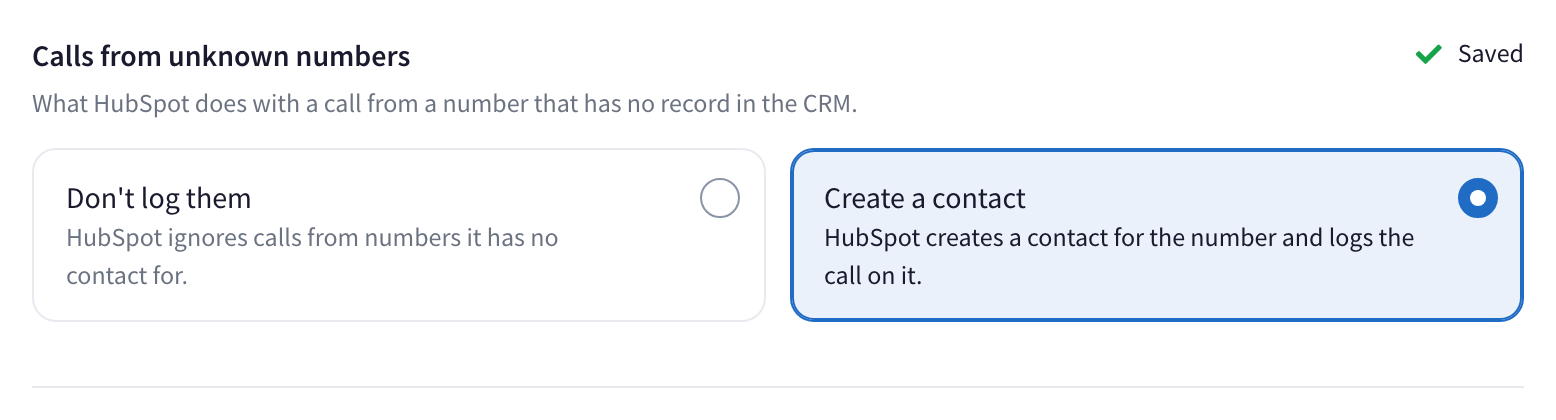
- Find Calls from unknown numbers.
- Choose Create a contact.
It saves right away. You see a green check mark and Saved at the top right.
Each new contact gets the legal basis Legitimate interest – prospect/lead. A legal basis is the reason you may keep a person's details. HubSpot asks for one when its privacy settings for the GDPR are on. In accounts in the EU they can be on from the start. You don't have to do anything. The app adds it for you.
Common questions
Will it change my HubSpot contacts?
HubSpot's screen uses broad words. It says the app may see, create, change and delete contacts, and see your HubSpot users. This is what the app really does:
- It reads contacts to find who each chat is with.
- It adds your WhatsApp chats and calls to them.
- It creates a contact only for a call with a number that is not in HubSpot yet. This can be a call you got or a call you made. It happens only if you chose Create a contact.
- It looks at your HubSpot users to put each chat and call under the right teammate.
Wassenger never changes the details on a contact. It never deletes a contact. It never joins two contacts into one.
Will HubSpot send WhatsApp messages?
No. The Connect HubSpot screen says HubSpot may send messages from your numbers. Right now HubSpot never does. The app only adds your chats and calls to HubSpot. If you chose Create a contact, the app also adds a contact when a new number calls you or you call one.
How do I add or remove a number later?
Disconnect HubSpot first. The steps are just below. Then connect it again, like the first time. Pick every number you need. If you use Create a contact for calls, choose it again too.
How do I disconnect HubSpot?
You can disconnect at any time.
- Open Connected apps.
- Click HubSpot.
- Click Revoke HubSpot. This button turns the connection off.
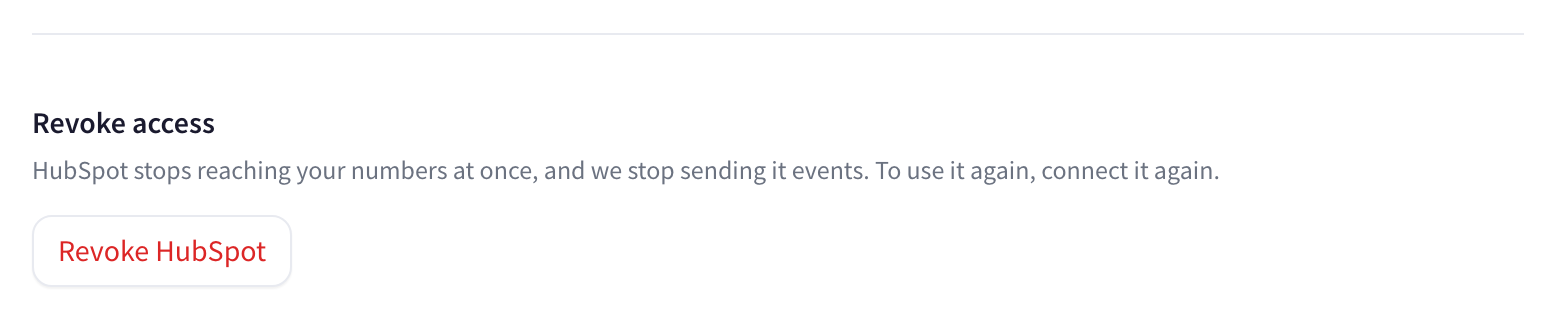
- A box asks if you are sure. Click Revoke.
This is what happens:
- Your numbers stop sending anything to HubSpot, right away.
- Everything already on your contacts stays there. Nothing gets deleted.
- The Chat & Call Sync app stays in your HubSpot account, but it gets nothing new. To remove it too, read the next question.
- If you added the WhatsApp card, it stays on your contacts. It now says WhatsApp is not connected yet. A HubSpot Super Admin can remove it: open a contact, click Customize, then Default view, and remove the card.
To use it again, open Connect HubSpot. Follow the same steps as the first time.
How do I remove the app from HubSpot too?
Disconnect it in Wassenger first, as above. Then, in HubSpot:
- Click the settings icon at the top.
- On the left, click Integrations, then Connected Apps.
- Next to Chat & Call Sync, click Actions, then Uninstall.
- Type uninstall and click Uninstall.
What if someone removes the app inside HubSpot?
Someone may remove Chat & Call Sync from HubSpot itself. Then your numbers stop sending to HubSpot. Wassenger usually sees it within minutes, and at most within a few hours. To check:
- Open Connected apps.
- Is HubSpot missing from the list? Then click Show 1 revoked app at the end of the list. If more apps were revoked, the number is bigger.
- Click HubSpot.
The page shows one of these:
- Revoked. To use it again, click Connect HubSpot again. Follow the same steps as the first time.
- Disconnected, with a note to reconnect. Follow the steps just below.
What if the HubSpot page says to reconnect?
Sometimes the HubSpot page in Connected apps shows a note. The note asks you to reconnect. Then:
- Open Connected apps.
- Click HubSpot.
- Click Reconnect.
- Click Continue to HubSpot.
- If HubSpot asks you to choose an account, choose the same one as before.
- Click Connect app.
- HubSpot may warn that the app is not verified yet. Type I accept the risk. Then click Connect.
Your numbers and settings stay the same.