

Your Klaviyo flows can start a WhatsApp too: Wassenger sends it. A customer leaves the checkout, and an hour later your reminder reaches them on WhatsApp, by name, from your own number, with the link to finish. You paste one recipe into your flow, once.
This guide sets up the abandoned cart reminder. The order confirmation and the shipping update are at the end, with the same four steps.
Before you start
- Your WhatsApp Business API number connected to Wassenger. It is the number your customers see.
- Your Shopify store connected to Klaviyo.
- Two-step verification on in Klaviyo. Step 3 needs it. Turn it on under Settings, then Security.
1. Create your WhatsApp template
- Open Templates and click Create template.
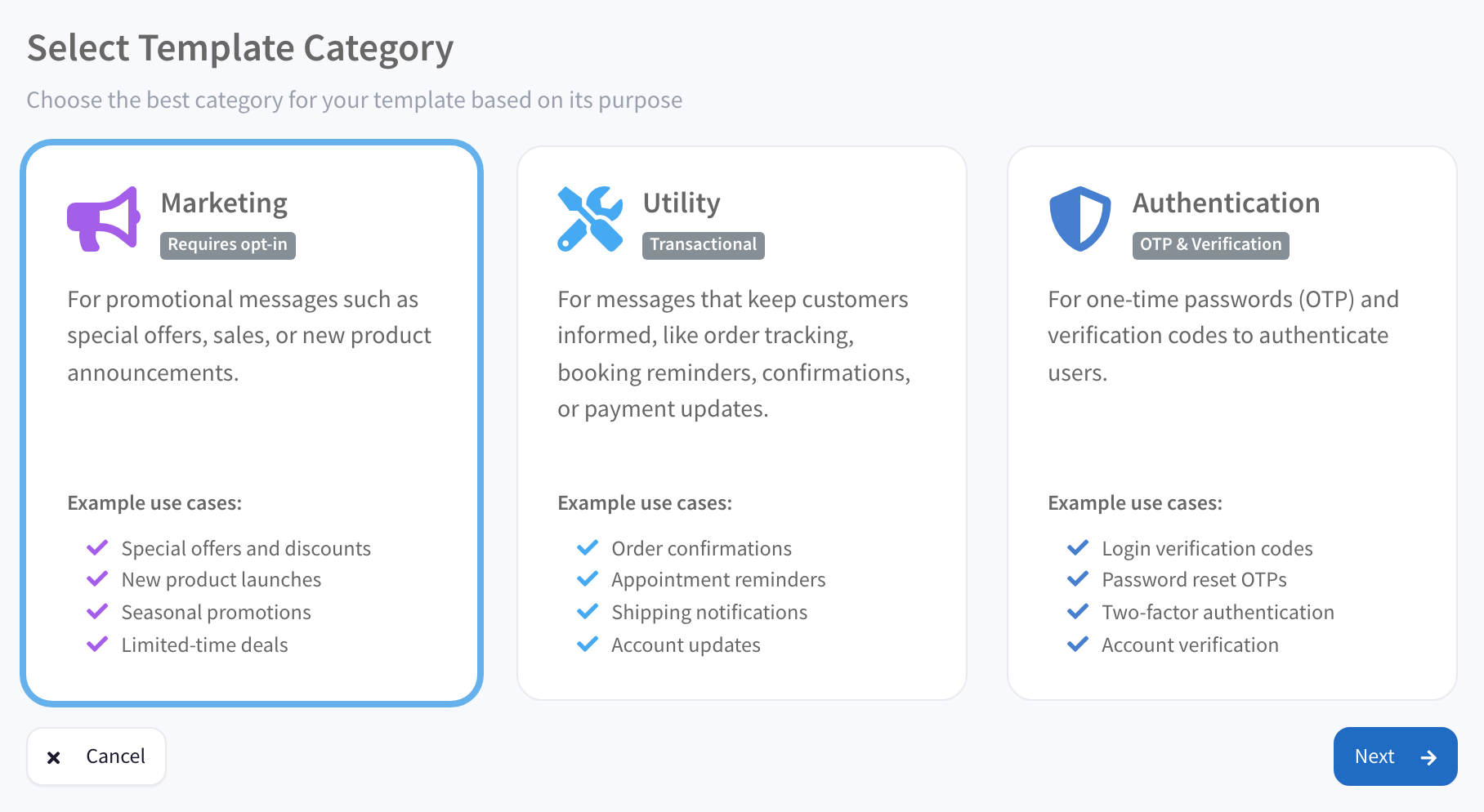
- Choose Marketing and click Next.
- Choose Custom and click Next.
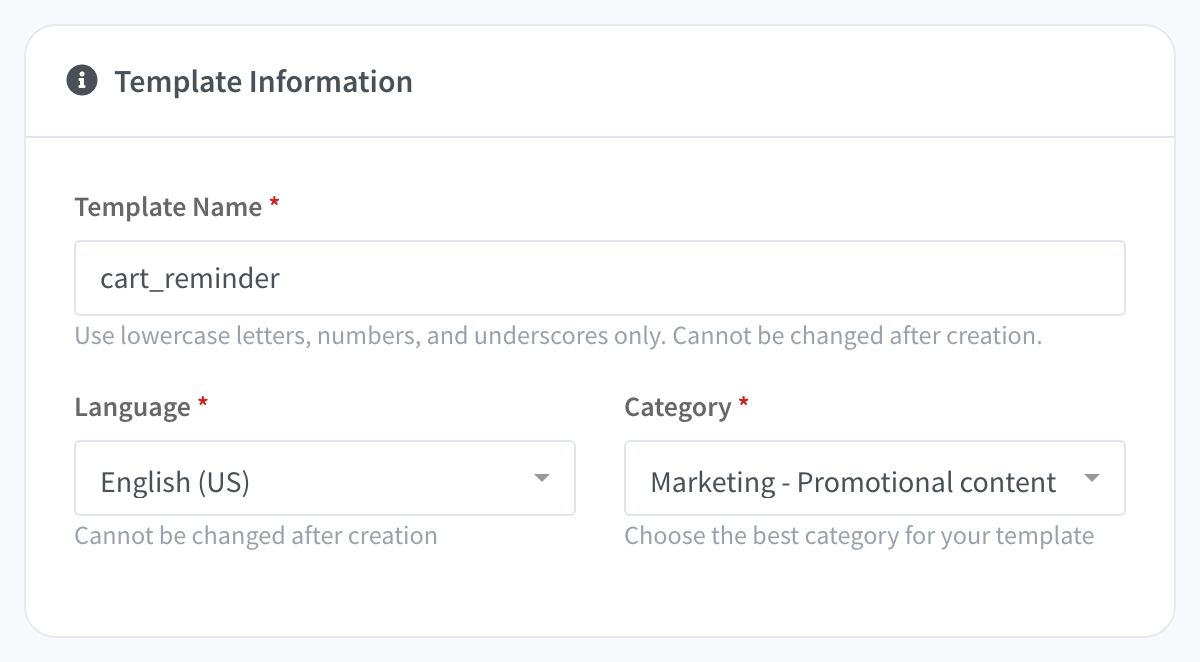
- In Template Name, type
cart_reminder. Leave Language on English (US).
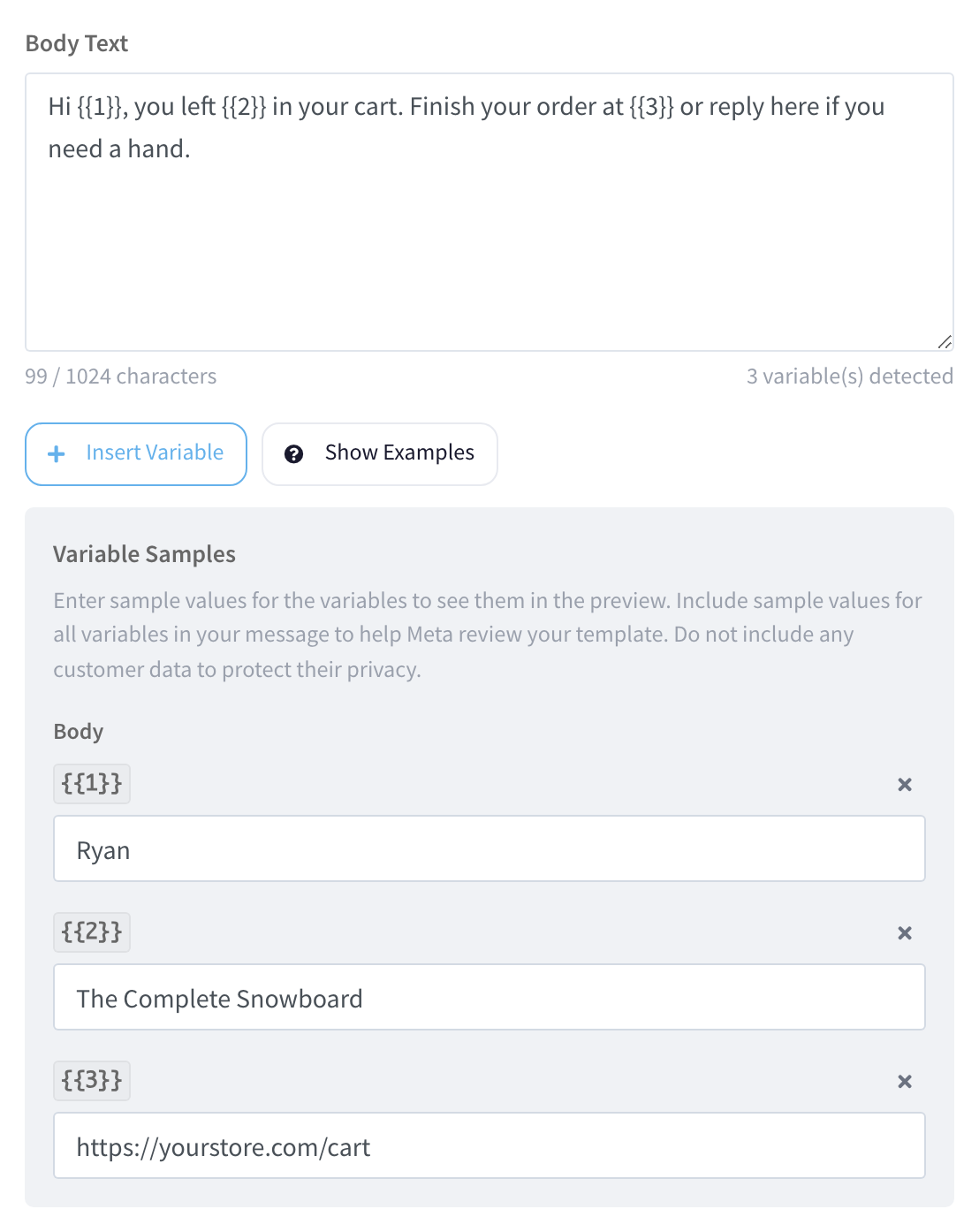
In Body Text, paste this:
Hi {{1}}, you left {{2}} in your cart. Finish your order at {{3}} or reply here if you need a hand.Under Variable Samples, type one example for each:
Ryan,The Complete Snowboardandhttps://yourstore.com/cart.
- Click Create template. Meta approves it in up to 24 hours.
2. Build the flow in Klaviyo
- In Klaviyo, open Flows, click Create flow and choose Build your own.
- Give it a name, choose the trigger Checkout Started and click Save.
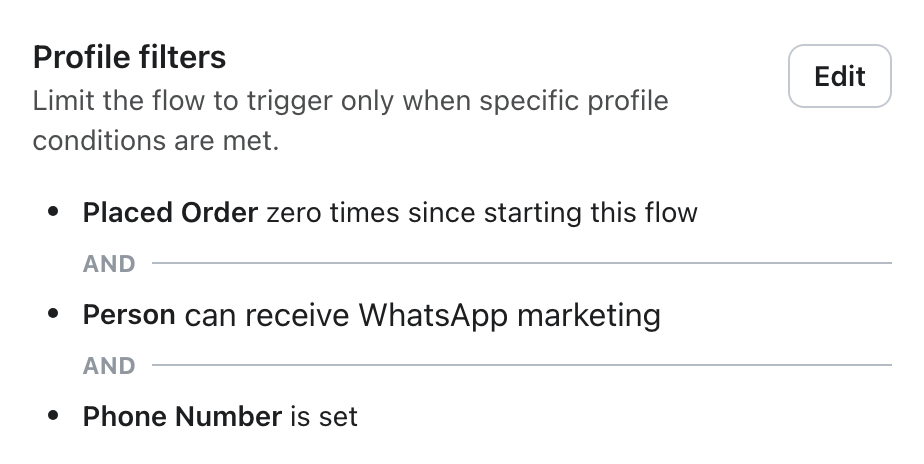
- Click the trigger and, under Profile filters, add these three:
- What someone has done (or not done): Placed Order, zero times, since starting this flow. It leaves out the customers who finished their order.
- If someone can or cannot receive marketing: can receive, WhatsApp marketing. Only the customers who gave you permission for WhatsApp get the reminder. Klaviyo keeps that permission on each profile.
- Properties about someone: Phone Number, is set.
With the three added, the trigger lists them like this:
- Add a Time delay under the trigger and set it to 1 hour.
3. Add the step that calls Wassenger
- Add a Webhook action under the time delay. You find it under Data.
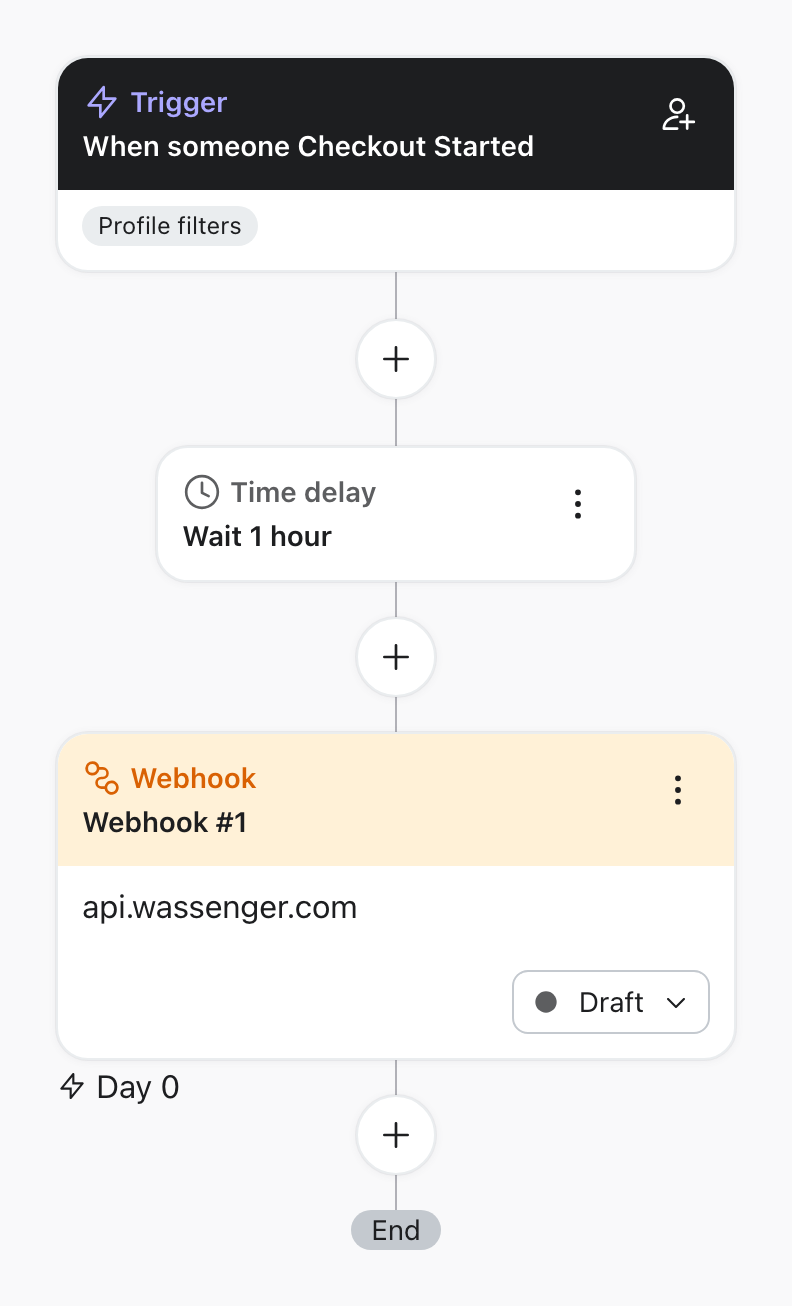
In Destination URL, paste this:
https://api.wassenger.com/v1/messagesUnder Headers, click Add header. In Key, type
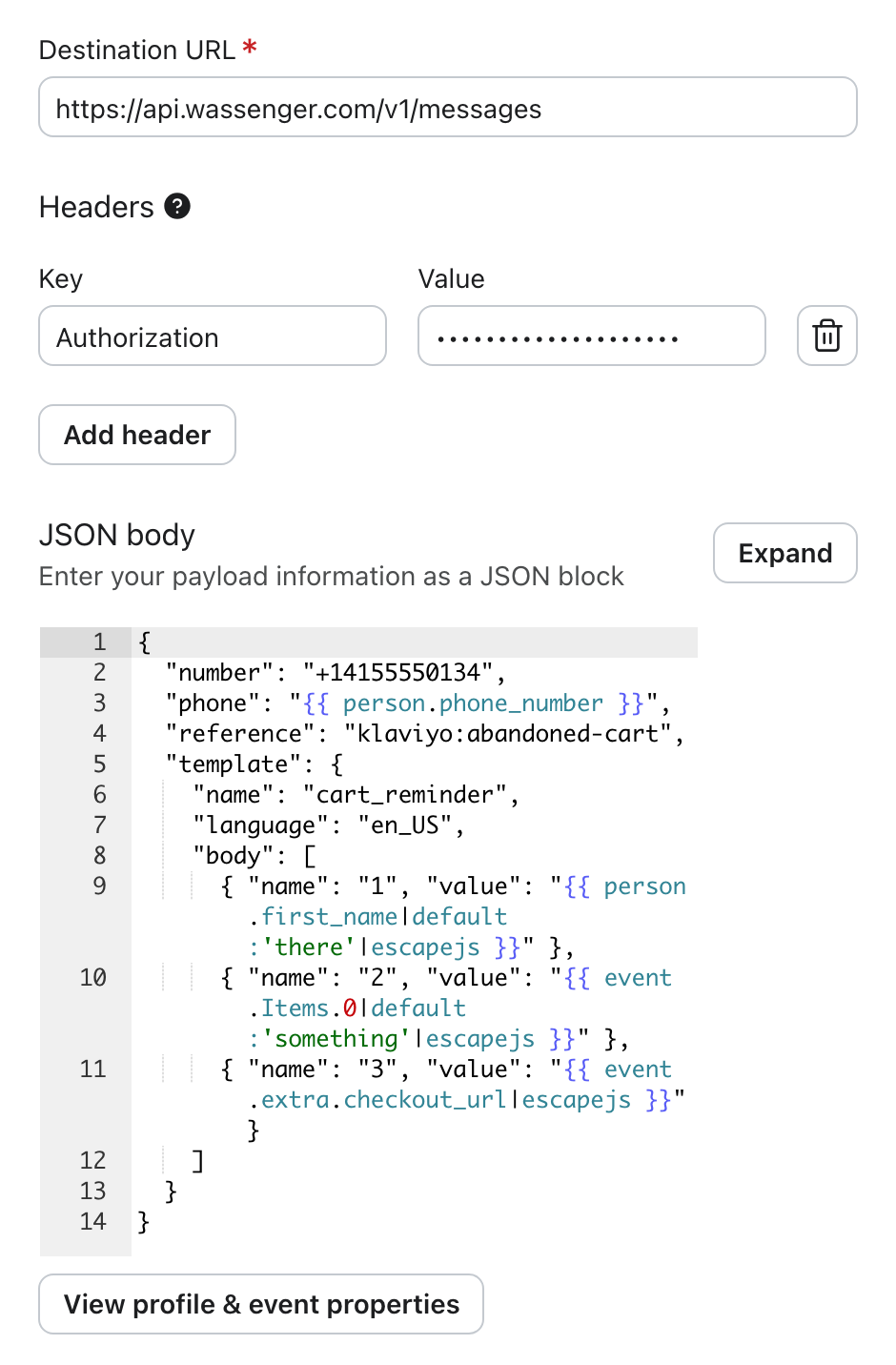
Authorization. In Value, paste your API key.In JSON body, paste this recipe as it is:
{
  "number": "+{{device.phone}}",
  "phone": "{{ person.phone_number }}",
  "reference": "klaviyo:abandoned-cart",
  "template": {
    "name": "cart_reminder",
    "language": "en_US",
    "body": [
      { "name": "1", "value": "{{ person.first_name|default:'there'|escapejs }}" },
      { "name": "2", "value": "{{ event.Items.0|default:'something'|escapejs }}" },
      { "name": "3", "value": "{{ event.extra.checkout_url|escapejs }}" }
    ]
  }
}
Check the first line of the recipe: number has to be your WhatsApp Business API number, with its + and country code. Then click Save.
4. Test it and turn it on
- In your own store, start a checkout with your own phone number and leave it without paying.
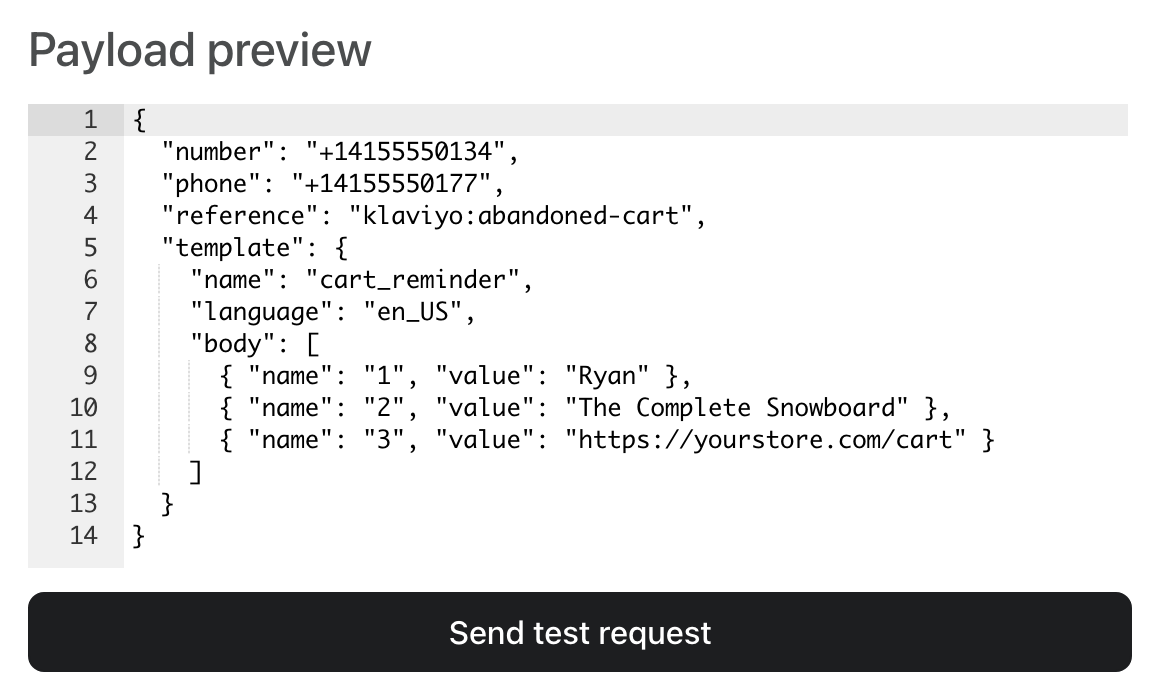
- In Klaviyo, open the Webhook action and click Preview. It shows your checkout. If it shows another customer's, click Next Event until you see yours.
- Click Send test request. The WhatsApp reaches your phone in a few seconds.
- Click Review and turn on.
From now on, every customer who leaves the checkout gets your reminder an hour later. When they reply, the chat is in your Wassenger inbox.
Two more flows
Same four steps, with one profile filter (Properties about someone: Phone Number, is set) and no time delay.
Order confirmation
Trigger: Placed Order. In step 1, choose Utility, name the template order_confirmation and paste this text:
Hi {{1}}, we got your order {{2}}: {{3}}. We'll message you here when it ships.
Recipe:
{
  "number": "+{{device.phone}}",
  "phone": "{{ person.phone_number }}",
  "reference": "klaviyo:order-confirmation",
  "template": {
    "name": "order_confirmation",
    "language": "en_US",
    "body": [
      { "name": "1", "value": "{{ person.first_name|default:'there'|escapejs }}" },
      { "name": "2", "value": "{{ event.extra.name|escapejs }}" },
      { "name": "3", "value": "{{ event.Items|join:', '|escapejs }}" }
    ]
  }
}
To test it, place an order in your own store first.
Shipping update
Trigger: Fulfilled Order. In step 1, choose Utility, name the template shipping_update and paste this text:
Hi {{1}}, your order {{2}} is on its way. Tracking number: {{3}}. Reply here if you have any questions.
Recipe:
{
  "number": "+{{device.phone}}",
  "phone": "{{ person.phone_number }}",
  "reference": "klaviyo:shipping-update",
  "template": {
    "name": "shipping_update",
    "language": "en_US",
    "body": [
      { "name": "1", "value": "{{ person.first_name|default:'there'|escapejs }}" },
      { "name": "2", "value": "{{ event.extra.name|escapejs }}" },
      { "name": "3", "value": "{{ event.extra.fulfillments.0.tracking_number|default:'not available yet'|escapejs }}" }
    ]
  }
}
To test it, mark one of your own orders as fulfilled first.
Questions
Who gets the message? Only the customers who have a phone number in Klaviyo. The cart reminder is marketing, so it also goes only to those who gave you permission for WhatsApp.
The flow is on, but nobody gets the cart reminder. It only goes to customers who gave you permission for WhatsApp in Klaviyo. If none of your profiles has that permission yet, collect it first.
What does each message cost? Meta charges for each template you send, at a rate that depends on your customer's country. Meta bills you for it: it is not part of your Wassenger plan.
Where do the replies go? To your Wassenger inbox, where your team picks up the chat.
A message says "there" instead of a name.
That customer has no first name in Klaviyo. The word after default: in the recipe is what the message says then. Change it to any word you like.
The test failed and mentions the template. The name and the language in the recipe have to be your template's, to the letter, and Meta has to have approved it. Check it in Templates.
Does Klaviyo show if the message was delivered? Klaviyo only shows that it called Wassenger. Delivery and replies are in your inbox.
My template is in another language.
In step 1, choose your language in Language. In the recipe, change en_US to its code: es for Spanish, pt_BR for Portuguese (Brazil), fr for French, de for German, it for Italian. Write the words after default: in that language too.